A local model can answer questions about the first page of a PDF and miss the appendix. Run the same document twice to find out whether a larger context helps. Keep the model and prompt fixed so you can compare the answer with the extra memory and wait time.
Count the request as the runtime sees it. Include your instructions, the text the app sends, any earlier chat turns, and room for the answer. As a planning example, 500 tokens of instructions plus 3,450 of source text and a 600-token answer budget totals 4,550 tokens before any formatting overhead. A configuration with a 4,096-token window cannot hold that request in full.
Compare two context settings
Pick a document you can use for testing. Export the text if your app’s PDF processing makes it hard to tell what the model received. Keep the same model build, weight quantization, prompt, and maximum output across the two runs. Where the runtime supports it, use its model tokenizer to measure the input. For a document with tables, code, or several languages, measure the actual tokens before deciding whether it fits.
Start with the smaller context, then repeat at the larger setting. In Ollama, change the context length in settings and use ollama ps while the model is loaded to check the allocated context and split between GPU and CPU. Record the app version and close other memory-heavy work that you can reproduce closing on both runs. If the two tests share a resident model, reload it between settings so the runtime allocates the requested window. Ollama’s context-length guide
| Record | Why it matters |
|---|---|
| Baseline memory and highest observed memory use | The first figure includes the workload you have open before testing. |
| Actual context and GPU/CPU placement | A larger setting may also move work onto the CPU. |
| Time to first visible text and time to finish | Additional memory pressure can show up as a wait or slowdown. |
| Answers to an early and a late question | A completed response can still miss part of the input. |
Watch the memory indicator appropriate to your hardware. If the machine uses a separate GPU, record its memory and the system memory separately. On a unified-memory machine, look at system memory pressure during the run. A momentary reading can miss the peak, so note whether you used a sampler or a manual reading.
Check that the added context helped
Use a pair of facts you can verify by hand, one near the start and one near the end. Ask for the wording or a page reference you can look up. If the larger window fits in memory yet consistently misses the later fact, inspect the text the app sent. File extraction or retrieval might have left that section out before the model saw it.
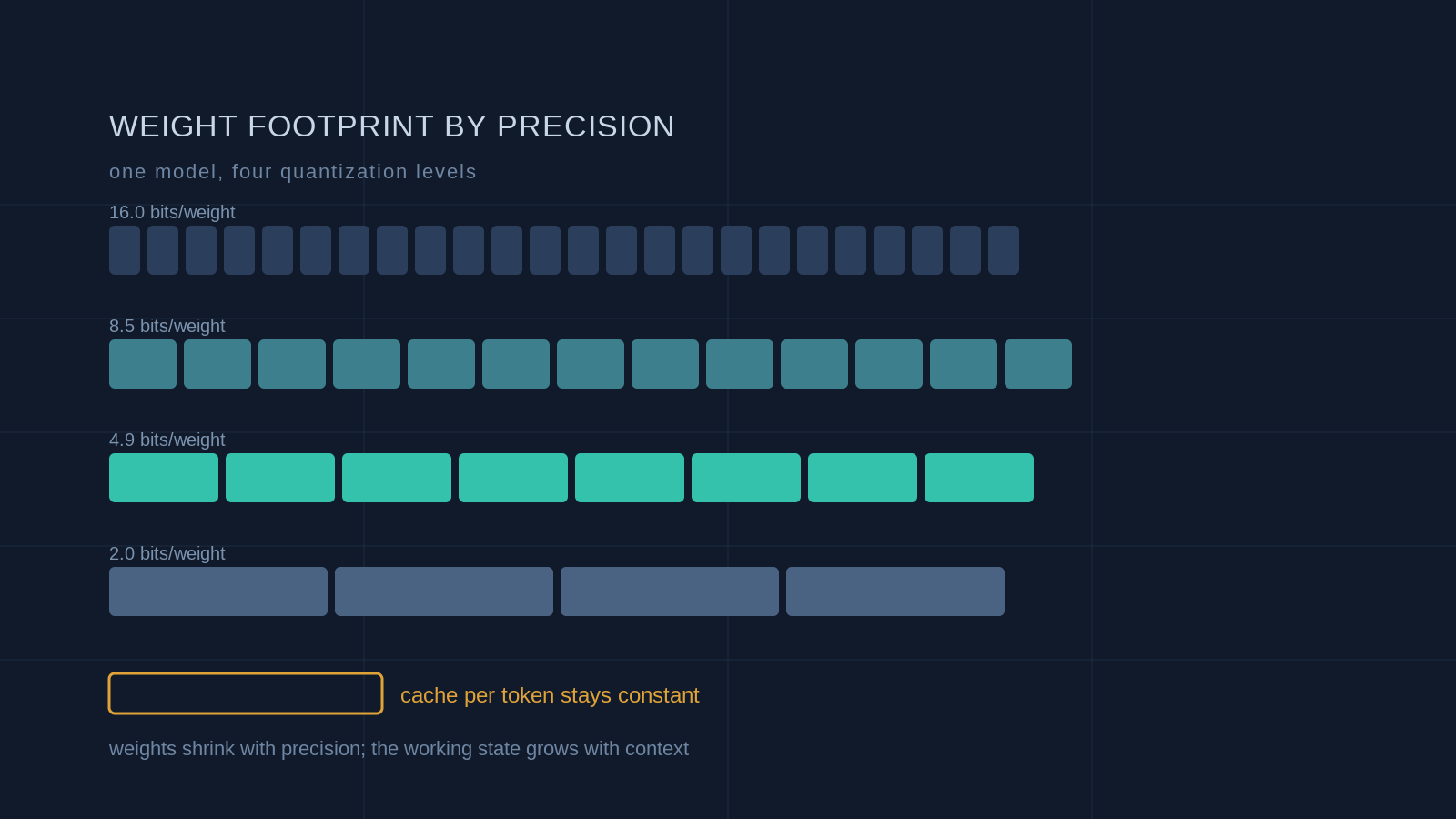
Hugging Face documents one cache that grows during generation, another that allocates space up front, and options to move parts of a cache into system memory. That is why the same weights can occupy different amounts of memory in different runtimes. Hugging Face cache strategies
Give the test document two landmarks
A guide with section numbers works well because you can verify the answer without asking the model to grade itself. In a local test document, put a project code on its second page and a different code in an appendix. Place realistic material between them so the amount of text matches the documents you handle. Ask for both codes and a page or section reference. Use made-up codes that are unlikely to occur elsewhere in the file. A correct answer near the start tells you little about whether the end reached the model.
Run the request in a fresh chat with the shorter context. Save the actual answer and note any truncation message the app shows. Then use a fresh chat with the larger setting and send the same prompt and document. In an app that searches the document before answering, try the passage as pasted text too. That can help distinguish a context bottleneck from a search step that never selected the appendix. If you control the test through a runtime API, log the length of the submitted input using the runtime's own accounting where available.
Read the time and memory measurements together
Take the first measurement with the model loaded and waiting. Keep your other open apps fixed across runs. After you send the request, note the time at which output starts and when the whole response finishes. Use the same other tasks for both runs. If you regularly leave a video render running, include it in a second test. Keep that result separate from the document-only run.
Say the shorter run returns the first code in five seconds but cannot find the appendix. At the longer setting, suppose output starts after nine seconds and both values are correct. If you run these reviews only twice each morning, the extra wait may be acceptable. If the longer run also causes the rest of the desktop to stall, try the same test with the document split into two explicitly labelled sections. Compare the final combined answer with the two codes. Some work can use that two-part approach if you include the sections it needs and verify the result independently.
A second pattern needs different investigation. If both settings get the early and late facts right but the larger one makes output noticeably slower, check whether the processor split changed. A larger window can increase memory needs, and a change in placement gives you another explanation to investigate. When the results vary across repeated runs, note the first run separately from later runs and compare local AI speed using matched workloads. Choose the setting from the work you can repeat comfortably, with the apps you actually leave open.
Save the shortest setting that passes the task
Define what counts as a pass before choosing. For an exact reference lookup, both landmark facts and their locations need to be correct. For summarizing a long packet, add a check where the conclusion depends on two sections at once. A split request can supply each fact in isolation and still miss a dependency between them.
Record the runtime, model build, quantization, context setting and document used for the measurement. Keep the memory observation with those details. A change to the model build or the software can change the result even on the same computer. When you increase the typical document size, rerun the landmark check with a representative input. Keep a test file that you can share with a coworker without exposing the source document.