A scan can look readable on screen while the extracted text swaps a zero for the letter O. That matters if you are asking an AI app to report an invoice number or a date. Check that the app can recover a handful of exact fields before trusting it with a stack of PDFs.
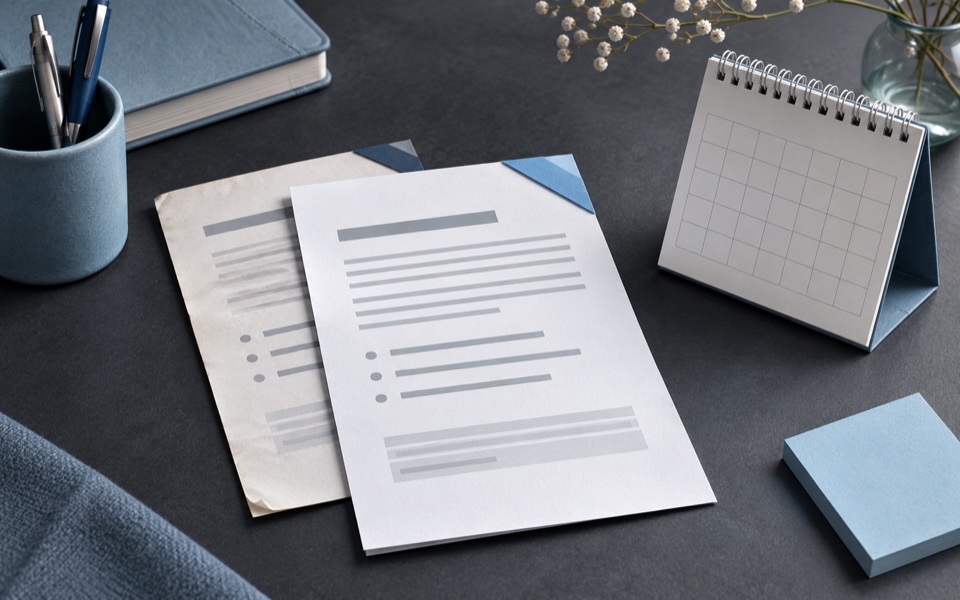
Use a clean scan as a baseline. Add a faint page and two harder layouts, one tilted and one set in dense columns. Use files you are allowed to send to the chosen service or recreate the pages with invented data. Record the page number and write down the values you can verify by looking at the image. Note any field even a person cannot read clearly, and set it aside as illegible.
Test the raw scan before repairing it
Start by trying to select and copy a couple of lines. A copied line can reveal an existing text layer, so compare it with the visible page. If there is no useful text layer, test the app’s normal PDF import. In a fresh session, ask it for exact values with page references and give it permission to report an unreadable field. Avoid providing the correct values in the prompt.
Do a second pass with a corrected copy. Straighten tilted lines and turn sideways pages upright. On pages with low contrast, try a cleaner original or adjust contrast on the copy. Tesseract documents how skew can interfere with line segmentation and discusses page segmentation modes for different layouts. Google Cloud’s Enterprise Document OCR documentation describes rotation correction and image-quality analysis. Note each correction you apply and the version of the OCR tool. Keep the prompt and scoring rules fixed between the two passes. Tesseract OCR quality guide · Enterprise Document OCR
| Test item | Score it this way |
|---|---|
| Identifier | Exact characters, preserving any leading zero |
| Amount | Exact digits, decimal placement, sign, and currency |
| Cross-column reading | Correct value and correct label from the same column |
| Unreadable field | Explicitly marked unreadable, without an invented value |
Decide whether to add an OCR step
Compare the raw and corrected runs field by field. Suppose 54 of 60 fields match the visual reference on the raw scan and 59 match after OCR and correction. Those numbers are illustrative. Keep the location of the remaining error next to the totals. A wrong final amount matters more to many workflows than a misspelled supplier name.
Make a reference from the visible pages
Choose a handful of fields from each layout before sending a file to the app. On the clean page, the reference might include the issuing company, invoice identifier, and amount due. On the tilted page, use a repeated value that could be confused with a purchase-order number. For the faint page, have another reader look for one date that is hard to distinguish. Mark a value as unreadable when neither reader can recover it with confidence. Treat that state as a separate acceptable outcome.
Suppose the example invoice shows order 0120 in the top-right corner and a similar reference 01Z0 under a barcode. Add both to the answer sheet with their labels. If the app reports a plausible value without a page and label, ask where it got it. An identifier can contain correct characters and still refer to the wrong field. Record the text precisely and compare it with the original before treating the score as a pass.
For an app that can cite a location, keep the page and column for each answer. For one that cannot, copy the short evidence you used to grade the case into your test log. That helps a person reproduce the result when the tool's OCR changes. Avoid taking the app's own copy of the text as the ground truth.
Improve one problem at a time
If the whole page is sideways, rotate a copy before changing anything else and run it again. If the lines are tilted by a smaller angle, straighten a copy and inspect the edges for cropped content. Keep both versions so you can trace a shortfall to one correction. An image adjustment that improves faint main text could make a lighter stamp less readable. Check your hard fields again after every material change.
When a page has two columns, look for a case that crosses the gutter in the app's output. A paragraph can read normally while it mixes a label from the left with an amount from the right. Try a diagnostic crop of a single column, with the page reference attached to the test output. If the crop works and the whole page fails, review layout and reading order. If the cropped characters still fail, inspect image quality and text recognition before changing how the result is parsed.
Use a clean original for comparison when you can. If a cleaner scan recovers the missing field, decide whether staff can provide that scan routinely. If the source is fixed, preserve the layout and route its unreadable field to manual review. A single success on a contrast-adjusted copy does not establish what will happen to another batch with different handwriting or print quality.
Set a rule for what can move forward
Set an acceptance threshold for each field that affects the handoff. In a sample with prices, the amount, currency and sign may require visual checking even when most labels are correct. For a reference lookup, leading zeros can be essential. Write a rule for what happens when a field remains unclear. It can be held for inspection or passed as missing if the downstream import supports that value. Do not silently fill it with a familiar number.
Keep one OCR copy next to the original when your workflow needs searchable text. Label it with the steps used and which pages were altered. Compare any surviving packet that will be processed next with your clean and difficult examples. For tables with continuation rows or subtle summary markings, pair the OCR test with the messy-table extraction score so the next check includes structure as well as characters.